![favicon-256.png]](https://help.textrequest.com/hs-fs/hubfs/favicon-256.png?width=30&height=30&name=favicon-256.png)
Overview of the Notification Center
The Notification Center gathers updates from across your Text Request account into a single, interactive feed. Instead of switching between multiple screens, you can monitor incoming activity in real time and take immediate action.
| Notification Event | Event Description | Example Action |
| Messages | Incoming customer texts or unread replies across assigned dashboards. | Jump directly into the conversation thread. |
| Reviews | New online reviews received through review request campaigns. | Open and respond to customer feedback. |
| Payments | Successful transaction updates and received payment requests. | Review payment receipt details. |
| Contacts | Completed contact list imports and exports, group updates, or contact exports. | Access imported contact records. |
| Account | System alerts and billing updates. | Update billing information after a failed attempt. |
| Integrations | Disconnected integration alerts or webhook delivery failures. | Review integration status logs. |
Accessing and Viewing Notifications
You can view your notifications from anywhere in the Text Request web platform using either the quick-view popover or the full Notifications workspace.
Path: Bell Icon (top navigation bar)
- Quick-View Dropdown: Click the bell icon in the top header to open a dropdown preview of your recent alerts.
- Full Notifications Page: Select View all notifications at the bottom of the dropdown preview, or navigate directly to app.textrequest.com/notifications
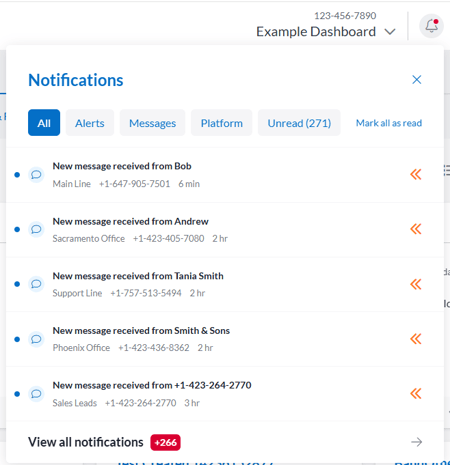
Notification Entry Overview
Each notification in your feed follows a standardized structure so you can quickly identify what happened and where.
To keep your feed clean, notifications update existing entries rather than creating duplicate lines for the same event.
For example, if contact Bob sends you a text, and then sends another text 2 minutes later before you read the first one, the original entry updates to show New message received from Bob with the most recent time stamp instead of creating two separate notification lines.
Anatomy of a Notification Entry

1. Blue dot: Tells you if the notification is unread or not. Click it to mark the notification as read.
2. Notification type: Informs what type of notification this is. Message, Contact, Review, etc.
3. Notification action: What actually happened.
4. Dashboard: The dashboard this took place on.
5. Contact: The contact who sent the message (only applicable to messages). This will always show the contact's number, but the Notification Action will show the contact's display name if applicable.
6. Alert: Any notification type that you set to receive an alert for will have the orange arrows icon as a visual alert indicator.
Note: Notifications are user-based. Marking a notification as read only clears the unread status for your individual user login. It will not clear the alert for other team members sharing the dashboard.
Configuring Notification Settings
Customize which dashboards send alerts to your feed and set priority rules for specific event types.
Path: Avatar Icon (top-right corner) > Profile Settings > Notifications OR Notification Center > Settings (gear icon)
Dashboard Scope Selection
Choose which dashboards feed into your Notification Center:
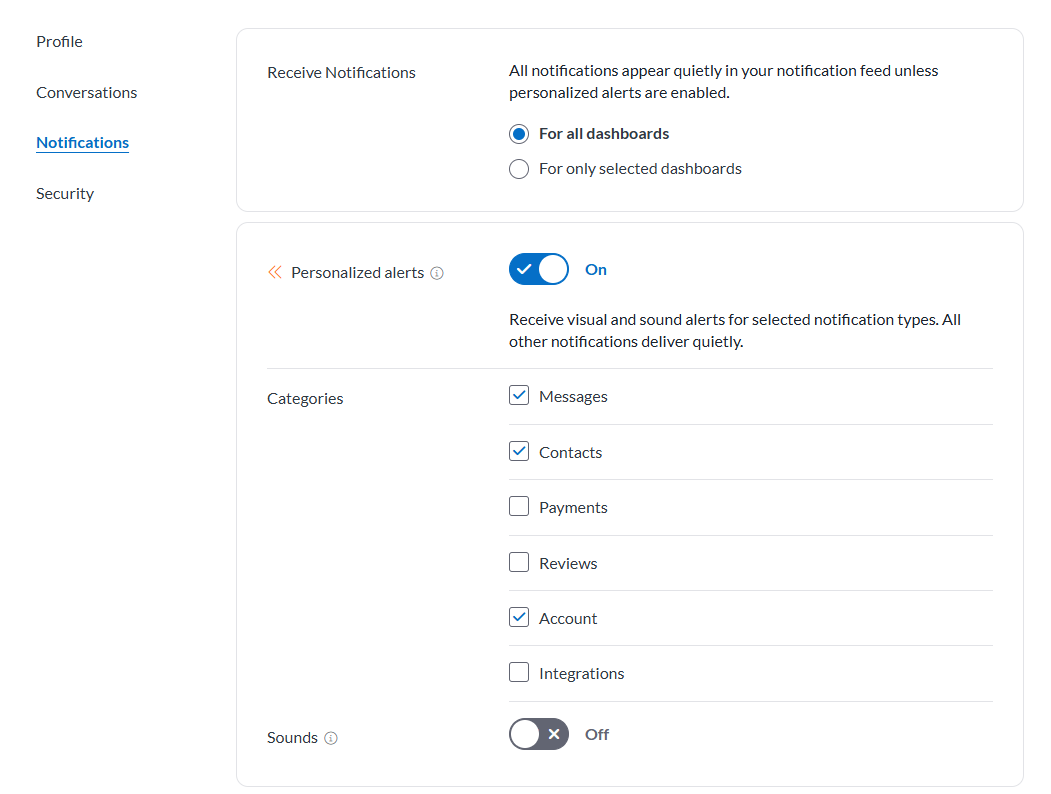
- Receive notifications for all dashboards: Displays activity from every dashboard you have permission to access.
- Receive notifications for selected dashboards: Restricts your notification feed to specific dashboards you select from the list.
Alerts vs Notifications
Notification: A notification is an entry, logged in your notification feed that informs you something happened. All notifications are delivered quietly, meaning they appear in your feed without announcing themselves while you're working.
Alerts: Alerts trigger some sort of attention-grabbing announcement, which can be visual (tab flash, badge, desktop pop up) and/or audible through a selected sound. You can select which types of notifications you receive alerts for and what types of alerts you receive.
1. Locate the Notification alerts toggle and switch it to On.
2. Under Types, check the box next to each category you want to prioritize (Messages, Contacts, Payments, Reviews, Account, or Integrations).
3. (Optional) Toggle Sound to On to play an audio chime for each alert.
| Notification Behavior | Priority Notifications | Standard Notifications |
| Feed Display | Displays an arrow icon and pins to the top of your feed. | Appears chronologically in your standard feed. |
| Visual and Sound Alerts | Triggers visual alerts and optional sound chimes. | Delivers quietly to your feed without audio chimes. |
Note: Notification alerts display with a distinct orange double-arrow icon in your feed and pin to the top of your list depending on your default sort and filter settings.
Sound Alerts
Sound alerts are optional and only apply to notification types you've selected to receive alerts for. Sound alerts will trigger for all selected notification types across all notification-enabled dashboards.
For example, if you're working in Dashboard 1, but receive a new notification on Dashboard 2, the sound alert will play.
For more information on sound alerts, see our Message Notifications guide.
Filtering and Managing Your Feed
Quickly sort through your notifications or mark items as read to keep your feed organized.
Path: Bell Icon > Notification Center Feed

Filtering Notifications
Select any of the quick-filter pills at the top of your feed to isolate specific alerts:
- All: Displays your complete notification history.
- Alerts: Shows only notifications for categories you've marked to receive personalized alerts for.
- Messages: Filters your feed exclusively to incoming text message alerts.
- Platform: Isolates system-level alerts, including contacts, payments, reviews, and integrations.
- Unread: Displays only unacknowledged notifications.
Managing Read States
- Mark Single Item as Read: Click the blue dot to the left of any individual notification to mark it as read.
- Click the Notification: Interacting with the notification will take you to the relevant page, such as the conversation of a new incoming message. This will also mark the notification as read.
- Mark All as Read: Click Mark all as read in the top-right corner of the feed to clear all active unread badges at once.
Note: You can set your default feed view under Profile Settings > Notifications > Default Sort and Filter. You can set your feed to automatically sort by Recent first, Priority first, or Unread first. You can check the box for Unread only to see only unread notifications in your feed.