![favicon-256.png]](https://help.textrequest.com/hs-fs/hubfs/favicon-256.png?height=30&name=favicon-256.png)
Message Tags help you track things that are important to your business.
For instance, you might want to note every time you get feedback (good or bad) so that your team can periodically sit down to determine what you’re doing well and what could be better.
In that case, you could create the tag “Feedback” to attach to all feedback-related messages.
To create a Message Tag:
1. Go to the Message Tags section under the Settings menu.
2. Click the New Tag button.
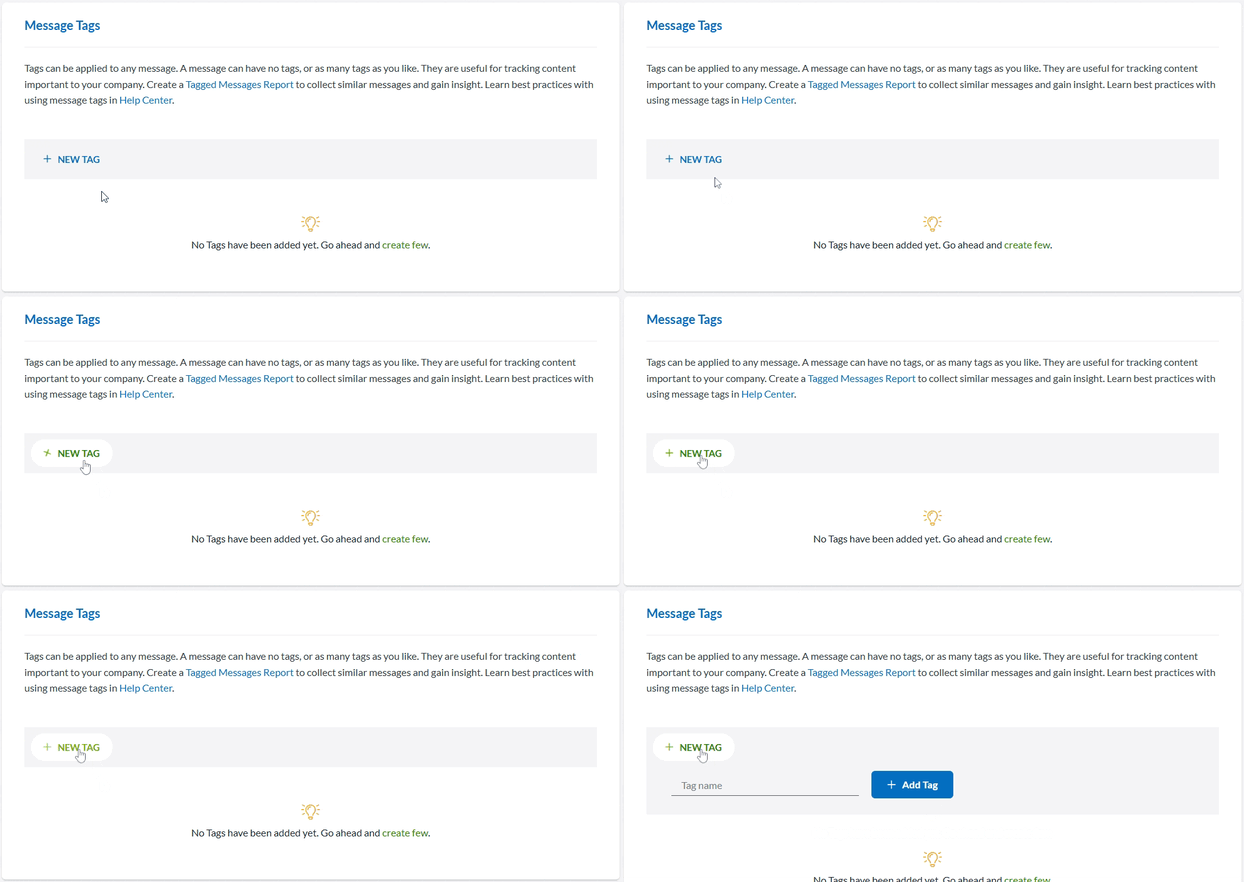
3. Enter the name of the Tag you want to create.
4. Click Add Tag.
Edit and Delete Message Tags
Click the pencil icon beside the name of the Message Tag to edit it. Any changes made will be reflected throughout your dashboard.
Click the trash can icon beside the name of the Message Tag to delete it. Deleted Message Tags are gone forever and must be remade.
Adding Tags to a Message
Message Tags can only be added to individual messages. A single message can have as many tags as you want.
To add a Message Tag through the queue:
Tagging from the conversation list/queue will apply the tag to the most recent message.
1a. Classic view: Select the tag icon on the bottom of the conversation block.
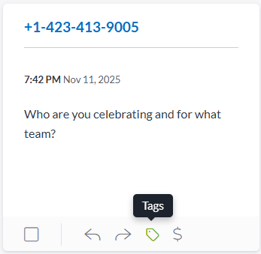
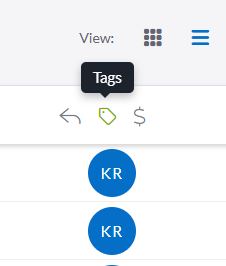
1b. Condensed view: Select the tag icon that appears to the right when hovering over the conversation entry.
1c. Combined view: This option is not available when using the combined view, as conversations are already opened for you to tag messages directly.
2. Select all tags that apply.
3. Click Save.
To add a Message Tag in a conversation:
1. Click the 3-dot button in message you want to tag.
2. Select Message Tags.
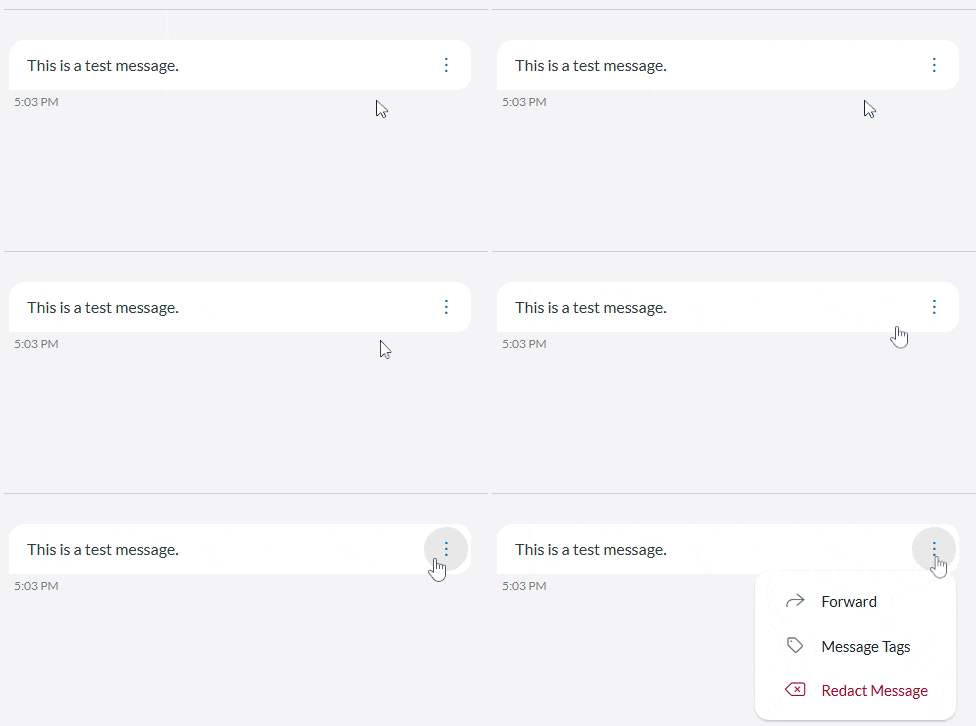
3. Select all tags that apply.
4. Click Save.
View Tags in a Conversation
In either Classic or Condensed view, the tag icon for a conversation will be green if messages within that conversation have tags. Hover over the icon for a list of Message Tags within that conversation.