![favicon-256.png]](https://help.textrequest.com/hs-fs/hubfs/favicon-256.png?width=30&height=30&name=favicon-256.png)
Requirements
Before you get started, you’ll want to make sure you have a few items already taken care of:
- A Text Request account with SMS Chat widget.
- Google Tag Manager (GTM) and Google Analytics installed on your website.
- Access to both your Google Analytics account and Google Tag Manager.
Step 1: Install the SMS Chat widget
Path: Integrations > SMS Chat
1. Click the copy button under Code Snippet.
2. Paste the code into your site’s HTML directly before the closing </body> tag.
If you have not yet already, customize the widget to your liking. See our SMS Chat guide for additional details.
Note: Any changes you publish will be automatically applied to the website without having to copy and paste the code again.
Step 2: Configure Listener Code
1. Add the following code to all of your website pages that will have the SMS Chat widget:
<script> (function() { var eventName = 'click', useCapture = true, trackOnlyShadowDom = true; var callback = function(event) { if ('composed' in event && typeof event.composedPath === 'function') { var path = event.composedPath(); var targetElement = path[0]; var shadowFound = path.length ? path.filter(function(i) { return !targetElement.shadowRoot && !!i.shadowRoot; }).length > 0 : false; if (trackOnlyShadowDom && !shadowFound) return; var buttonText = targetElement.tagName === 'BUTTON' || targetElement.tagName === 'A' ? targetElement.innerText || targetElement.textContent : ''; // Check if the button is disabled var isDisabled = targetElement.classList.contains('txr-disabled'); // Push to dataLayer on button click (only if not disabled) if (!isDisabled && buttonText === "Text us!") { window.dataLayer.push({ event: 'button_click', elementText: buttonText, elementId: targetElement.id || '', elementClasses: targetElement.className || '', elementUrl: targetElement.href || targetElement.action || '', elementTarget: targetElement.target || '', inShadowDom: shadowFound }); // Wait briefly to check if the button transitions to a disabled state setTimeout(function() { var isNowDisabled = targetElement.classList.contains('txr-disabled'); if (!isNowDisabled) { // Push a successful submission event if the button does not become disabled window.dataLayer.push({ event: 'submission_success', elementText: buttonText }); } }, 500); // Adjust delay as needed to match form validation timing } } }; document.addEventListener(eventName, callback, useCapture); })(); </script>
2. Title it: "SMS_Chat_Submit_Listener".
3. Log into Google Tag Manager.
4. Create a custom event with the name: “Submission_Success”.
5. Set it to fire on “elementText” contains “Text us”. Note: “Text us” is the default in the widget builder. If you changed it, then you’ll need to enter the new copy here instead.
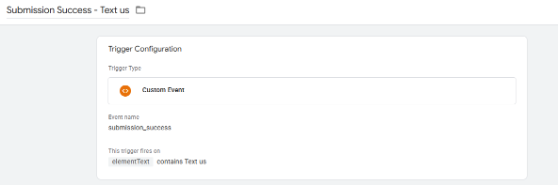
6. Create a tag link to GA4 and label it “SMS_Submission_GA4”.
7. Set the trigger to be the newly made “Submission Success - Text us”.
This allows you to easily use the trigger for other tracking tags, like LinkedIn and Facebook.
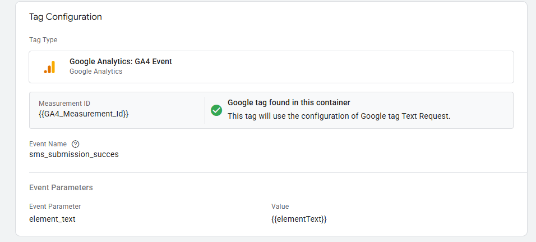
Step 3: Create an Event in Google Analytics
1. Log into your GA4 account.
2. Go to Settings → Data Display → Events.
3. Click Create New Event.
4. Name it “SMS_Submission_GA4” (the same as the tag you just created).
Once the tag is created, go ahead and test it to make sure the tags and events are firing correctly. You may need help from your website developer for this, or reach out to Google Support if you have questions.